

Send one credential per request. A request that carries both an
x-api-key and a personal access token is refused with conflicting_credentials.
API keys
The ROOTKey API uses API keys to authenticate requests. You can view and manage your API keys in Developer Tools on ROOTKey Platform. See API Keys for how to create one. API requests are authenticated using a custom header. To authenticate a request, provide the key in thex-api-key header of the request:
Personal access tokens
A personal access token lets an AI agent or a script act as you, without sharing your password or an API key. It acts as the user who created it and it can never do more than that user can do in the ROOTKey app. Three more limits apply on top of your own access: the scopes you gave the token, the organizations you chose for it, and the agent policy that each organization sets. A token works in one organization per request, and you name that organization in a header.Create a token
1
Open Account Settings
Sign in to app.rootkey.ai and open your Account Settings. Under Third-party access, go to the Personal access tokens tab and click Create token.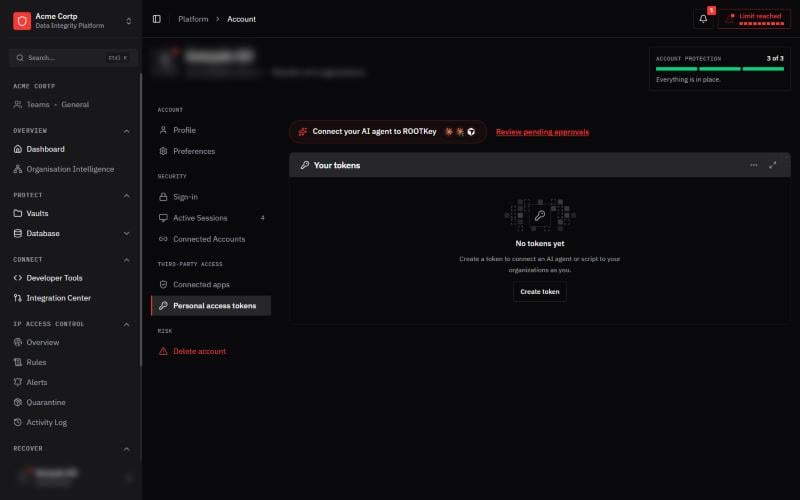
2
Name it
Give the token a name that tells you which tool uses it, for example 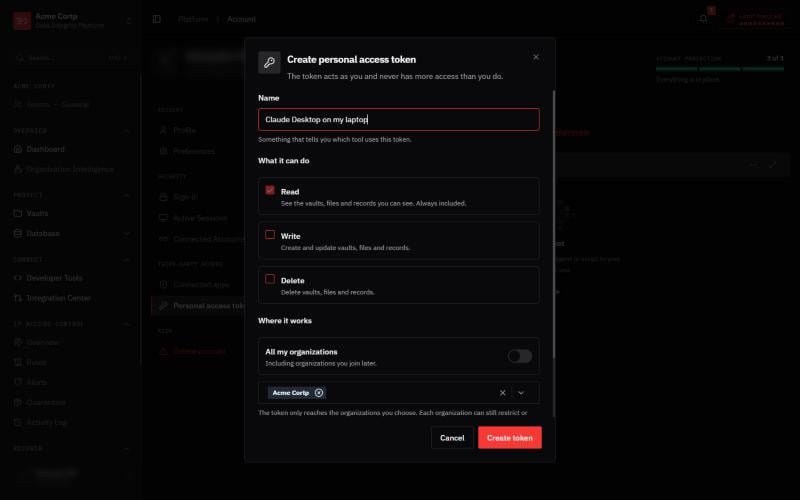
Claude Desktop on my laptop. Use one token per tool, so you can revoke one without touching the others. A name is at most 64 characters, and two of your active tokens cannot share one.3
Choose what it can do
Pick the scopes. Read is always included. Write and Delete are optional: grant them only to tools you trust.
4
Choose where it works
Choose the organizations the token may reach, or All my organizations, which also covers organizations you join later. A token reaches only the organizations you choose, and each organization can still restrict or block agents; see What an organization controls.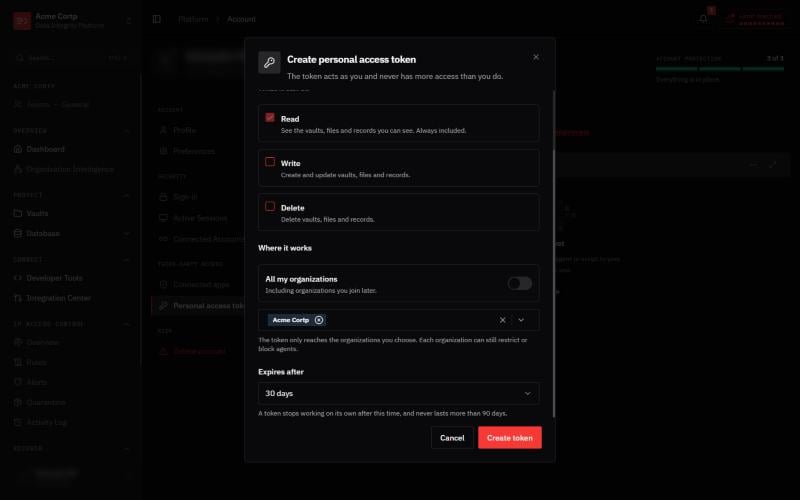
5
Set when it expires
Choose how long the token lives, from 1 to 90 days. It stops working on its own after that, and it never lasts longer than 90 days. To keep a tool connected, create a new token before the old one expires.
6
Confirm it is you
ROOTKey asks you to confirm before it creates the token. If you have two-factor authentication, enter the 6-digit code from your authenticator app, or a backup code. Otherwise enter the 6-digit code that ROOTKey emails to you, which works once and expires after 10 minutes. Then click Verify and create token.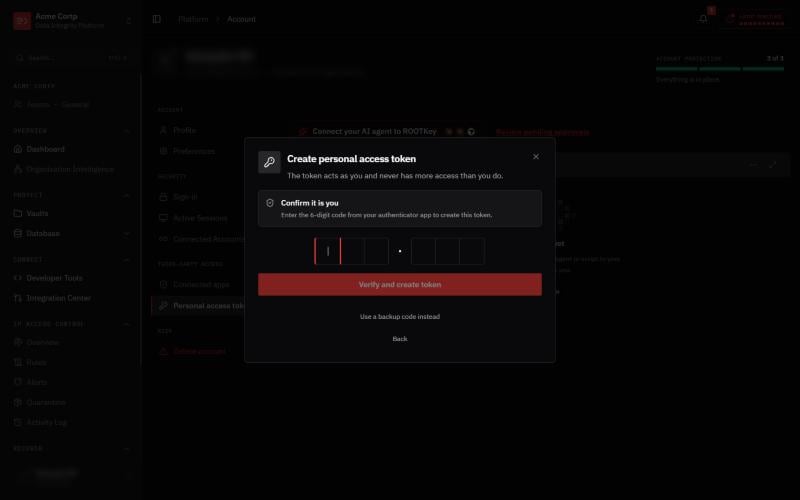
7
Copy the token
The token is shown once. Copy it now and store it like a password, in a password manager or a secret store. ROOTKey cannot show it again. If you lose it, revoke it and create a new one.
Use a token
Send the token in theAuthorization header, and the organization it acts in in the X-RootKey-Organization header:
Only a personal access token can call these three: a request with an API key gets the
404 that any unknown path gets.
The organization header
X-RootKey-Organization is required on every endpoint that works inside an organization. Without it the request gets organization_header_required. The header is the only place the organization is read from: a query string or a body field does not count. An API key belongs to exactly one organization, so it ignores the header.
Test and live data
A token works on live data unless a request sendsx-test-mode: true, which makes it work on the organization’s test data instead. Only this header decides, never a query string or a body field. See Test and Live Data.
Scopes
A scope is a permission you give the token when you create it. You cannot change a token’s scopes afterwards: create a new token instead.
A request that needs a scope the token does not carry gets
insufficient_scope. GET /me and GET /organizations need no scope, and GET /organization needs rootkey.read.
A token also never has more access than its user. The user’s role and teams in the organization decide what the request can reach, exactly as in the ROOTKey app, and a request that the role does not allow gets insufficient_permission.
What an organization controls
An organization decides whether and how agents can use its data. Its administrators set an agent access mode in the organization’s AI agents settings:
An organization can also:
- Switch off personal access tokens. No personal access token works in the organization from that moment, including tokens created later.
- Require two-factor authentication. Only members who have turned on two-factor authentication can use agents there.
- Block a member’s agents. Every token that member created stops working in that organization at once. The member keeps their own access in the app, and an administrator can unblock them at any time.
- Ask for approval of every delete. With Delete approval on, an agent’s delete of a file or a vault is refused with
agent_approval_requireduntil the member the agent acts for approves it in the ROOTKey app, with a fresh two-factor check. Then the same request runs once. See Delete approvals. - Let members open Restricted data to their own agents. Off by default. See below.
agentAccessible: false, so an agent can tell you they exist. With the option that lets members open Restricted data to their own agents off, which is the default, every request that would read or change them is refused with agent_restricted_data_denied. With it on, a read or a write is refused with agent_step_up_required until the member approves that one vault or table, for a few minutes, with a fresh two-factor check. Deleting and restoring Restricted data is never available to an agent, even with an approval. See Restricted data and agents. The organization’s IP access rules apply to a token’s requests like any other.
Your organization governs the credentials it delegates to agents, not the AI itself: an agent using a person’s own browser session, or a script holding an organization API key, cannot be told apart from that person.
GET /organizations shows each organization’s mode and whether you are blocked, so a client can tell you what to ask an administrator for instead of retrying. The codes are on the Errors page.
Not available to personal access tokens
Some endpoints are never available to a personal access token, whatever the organization allows. A request that carries one is refused withagent_route_not_available. Use an API key or the ROOTKey app for these:
- Deleting a record.
- Recovery points: fetch, download, create and delete. A token can only list them.
GET /files/deleted, GET /records/deleted, GET /vaults/deleted and the matching restore calls). Deleted tables, and anything of a Restricted vault or table, are restored by a person in the ROOTKey app. See Trash and restore for agents.
A token also cannot change a vault’s data classification: that stays with a person in the app (agent_classification_change_not_allowed).
Revoke a token
Open Account Settings → Personal access tokens, click the actions menu of the token and choose Revoke token. Anything that uses it stops working on its next request, and a revoked token cannot be restored. The list shows each token’s scopes, organizations, expiry, status and when it was last used. The last-used time updates every few minutes, so a token used a moment ago may still show Never. A token that is missing, malformed, unknown, revoked or expired gets one identical401, so the response never says which of them it was.